WARNING: Using TrueCrypt is not secure as it may contain unfixed security issues
This page exists only to help migrate existing data encrypted by TrueCrypt.
The development of TrueCrypt was ended in 5/2014 after Microsoft terminated support of Windows XP. Windows 8/7/Vista and later offer integrated support for encrypted disks and virtual disk images. Such integrated support is also available on other platforms (click here for more information). You should migrate any data encrypted by TrueCrypt to encrypted disks or virtual disk images supported on your platform.
Migrating from TrueCrypt to BitLocker:
If you have the system drive encrypted by TrueCrypt:
- Decrypt the system drive (open
System
menu in TrueCrypt and select Permanently Decrypt System Drive). If you want to encrypt the drive by BitLocker before decryption,
disable
Trusted Platform Module first
and do not decrypt the drive now.
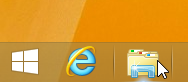
- Encrypt the system drive by BitLocker. Open the Explorer:
- Click the drive C: (or any other drive where system encryption is or was used) using the right mouse button and select
Turn on BitLocker:
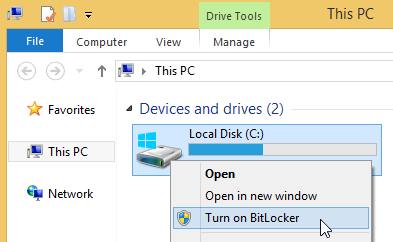
If you do not see the Turn on BitLocker menu item, click here.
Alternatively, use search in the Start menu or screen:
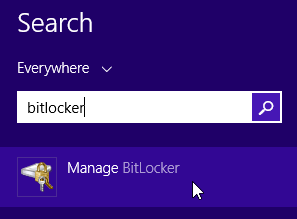
If you do not see the BitLocker item, click here.
If BitLocker reports Trusted Platform Module (TPM) unavailable error, click here.
- If the system drive is still encrypted by TrueCrypt, decrypt it now (open
System
menu in TrueCrypt and select Permanently Decrypt System Drive).
If you have a non-system drive encrypted by TrueCrypt:
- If you have a spare or backup drive (having sufficient space to store all data you need to migrate to BitLocker), encrypt it by BitLocker (click the drive in Explorer using the right mouse button and select
Turn on BitLocker):
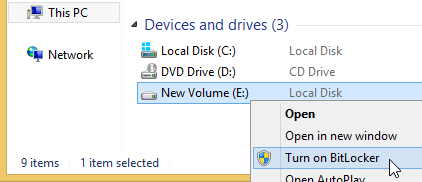
If you do not see the Turn on BitLocker menu item, click here.
- Copy all data from the drive encrypted by TrueCrypt to the drive encrypted by BitLocker.
If you do not have a spare drive, first decrypt the drive encrypted by TrueCrypt. Select the drive in TrueCrypt, open the Volumes menu and select Permanently Decrypt item (available in version 7.2). Then encrypt the drive by BitLocker (see above).
To mount a drive encrypted by BitLocker, open the drive in Explorer.
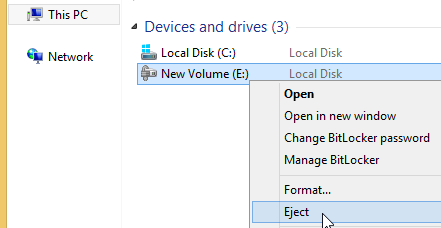
To dismount a removable drive encrypted by BitLocker, use Eject menu item or Safely Remove icon:
To dismount a non-removable drive encrypted by BitLocker, use Offline item in the context menu of the drive in Disk Management window:
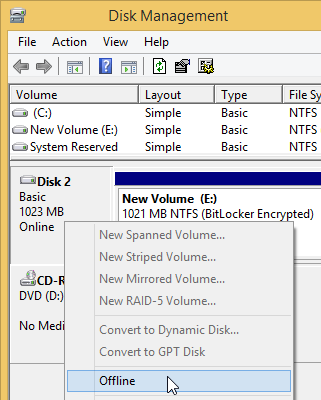
To mount the drive again, use Online item in the context menu of the drive.
If you have a file container encrypted by TrueCrypt:
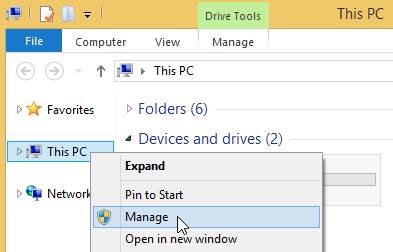
- Create a new virtual disk file (VHD). Open the
Computer Management
window (click the Computer
or
PC
icon using the right mouse button and select
Manage):
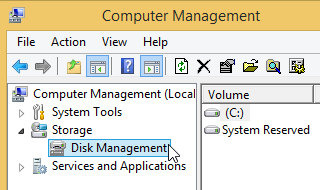
- Select the
Disk Management
item:
Alternatively, use search in the Start menu or screen:
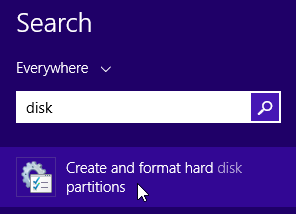
- Open
Action
menu in the Disk Management
window and select Create VHD:
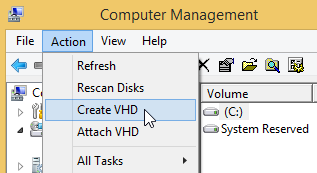
- Create and attach a new virtual disk file (VHD):
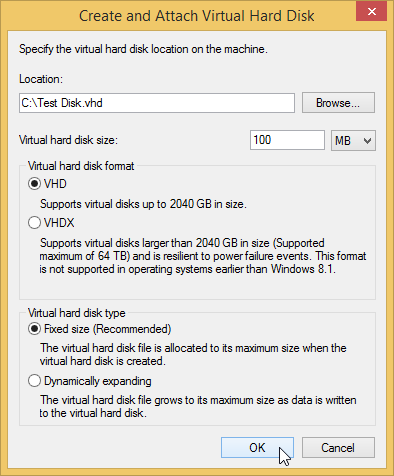
- Initialize the new virtual drive. Click the new disk icon using the right mouse button and select
Initialize Disk:
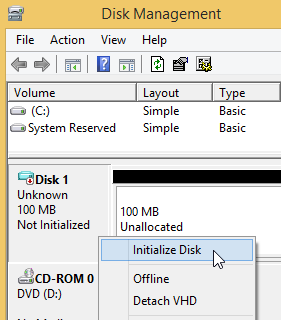
- Create a partition on the virtual drive. Click the unallocated space using the right mouse button and select
New Simple Volume:
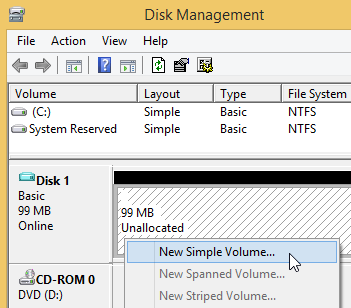
- Encrypt the new virtual drive by BitLocker. Click the drive in Explorer using the right mouse button and select
Turn on BitLocker:
If you do not see the Turn on BitLocker menu item, click here.
- Copy all data from the mounted TrueCrypt file container to the new virtual drive encrypted by BitLocker.
To dismount the drive, click the drive using the right mouse button in Explorer and select Eject:
To mount the drive again, double click the virtual disk file (requires Windows 8 or later):
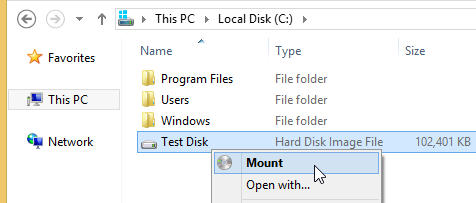
Alternatively, use Attach VHD in the Action menu of the Disk Management window:
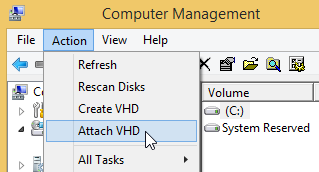
Download:
WARNING: Using TrueCrypt is not secure
You should download TrueCrypt only if you are migrating data encrypted by TrueCrypt.
TrueCrypt 7.2 sig key
If you use TrueCrypt on other platform than Windows, click here.